Record Terminal Sessions The Easy Way
Fragment #2

If you are creating documentation, training materials, or writing blog posts on technology, You’ve probably had issues with screenshots and screen recordings. I’ve struggled with it myself for years. That is, until I discovered the free and open source service from Asciinema.
Asciinema [as-kee-nuh-muh] enables you to record and share your Linux / WSL / MacOS terminal sessions without quality loss or having to edit anything.
Installing
Installing Asciinema on Linux is straight forward.
For example, if you are an Ubuntu user, you simply add the repository, and install the application using apt:
sudo apt-add-repository ppa:zanchey/asciinema
sudo apt-get update
sudo apt-get install asciinema
If you have the homebrew package manager installed, installing is even easier:
brew install asciinemaAfter you install,
Using
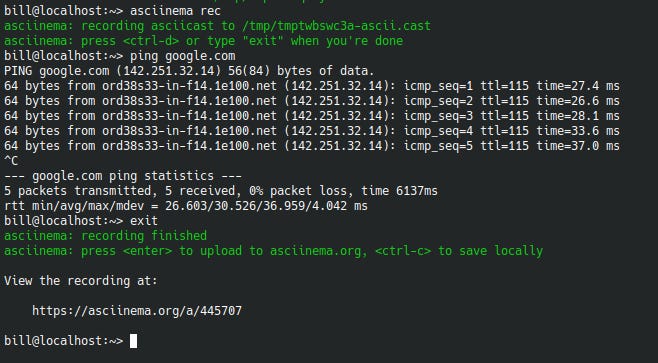
The best part about Asciinema is how easy it is to begin recording. To start recording a terminal session, you just type:
asciinema rec [filename]
Start typing in your terminal session as you normally would and when finished, press CTRL+D or type exit.
Here’s an example:
Sharing
Asciinema uploads your recording to your registered account where you can share the recording with others. You also have the option to save locally.
Here’s the recording from the screenshot in the last section:
https://asciinema.org/a/445707
Conclusion
Asciinema is one of the coolest and easiest apps I’ve seen for capturing terminal sessions for documentation and training purposes. Give it a try, and super charge your recording quality.